
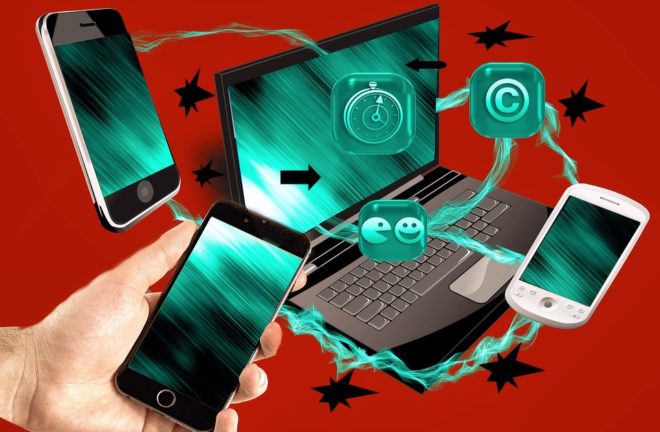
In an ideal world, there’d be no one snooping around our computer when we are not at home. People would respect our privacy and respect the need not to check our computer without our permission. But this isn’t an ideal world. Whether be it your curious family members, roommates, girlfriend or family members, anyone can check your PC behind your back. Blue Coat & K9 Web Protection will help you monitor the activities on your computer, So, what are the ways with the help of which you can prevent this situation?
Tips
Tools to monitor activities on your home computer
 If you suspect that someone else is using your computer, the most basic way to do that is by checking your computer’s history by clicking C+H. However, it’s very easy to delete any computer’s history, and anyone can do that. You also have other options to start monitoring activities on the home computer. These options can also be used if you have kids at home, and you want to keep a tab on the things they are doing on the computer.
Keylogger
You can use a keylogger to monitor activities. It’s software which keeps records of keystrokes, and this can easily be retrieved later. An activity history of your computer will be available to you. The standard version of the software is free, and you don’t have to pay any charge, but if you want some additional features, you need to pay for it. This version sends the logs to your email address so that you can check it even when you are put on some tour. This software can also be hidden from its users. Thus you can use it without getting noticed.
Windows live
 Windows live family safety is another software that you can use to monitor activities. Create an account on this software and log onto it. You can see a list of users that are using your computer. Under the name of the person who you want to keep a tab on, click on the monitor option and then you are ready to go. Whenever you want to monitor any person’s activity, go to the family safety page and click on the view activity report. If you want to block any website from your computer, just click on Select next to the website name, and then Block it for any particular person, or you can also Block the website for everyone who uses the computer. Click on the Save option at the bottom of the page once you are done.…
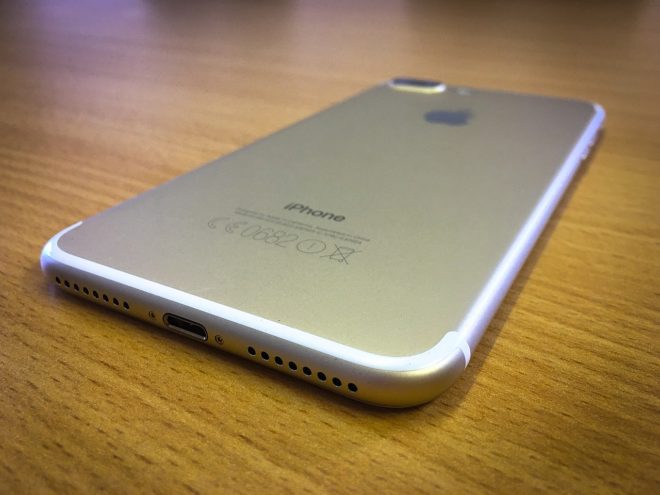
 Once the Cydia program is installed, you need to search for the unlock iPhone app called ‘UltraSn0w’. Once you find that app, just download it and then run it. Once you run it, your iPhone 7 will be unlocked. Now you can go ahead and change the SIM. To do this, look for a safety pin or an open paper clip. Shove that into the tiny hole next to the SIM holding tray, and the tray will pop out. This is when you can insert the new SIM of your choice and then reboot the iPhone. Once you turn your phone back on you will see that you have successfully learned how to unlock iPhone 7.…